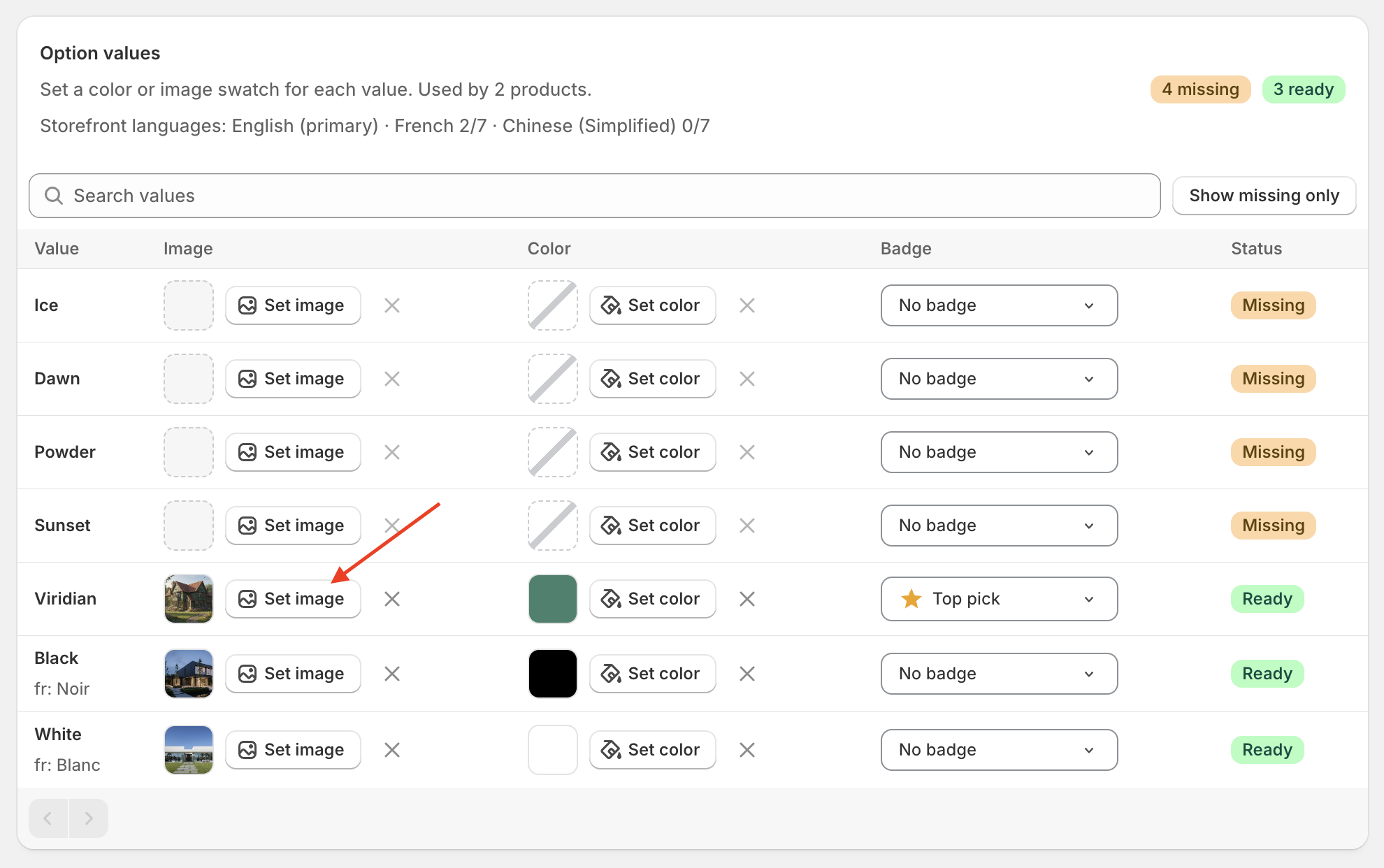
Swatchfy already asks the Shopify CDN for a larger image than it displays — roughly twice the swatch size, so it stays sharp on retina and high-DPI screens. What it cannot do is add pixels that were never in the file. If you upload a 40px image and display it at 66px, the app requests a larger version, Shopify returns the 40px original, and it looks soft.
Upload swatch images at at least twice the size you display them.
Swatch size in your style settings | Minimum image to upload |
40px | 120px |
66px (default) | 180px |
100px | 240px |
Square images work best — a non-square image is cropped to fit the swatch shape.
Swatch style → Swatch image source decides where the picture comes from: a custom image you uploaded, the product variant's own image, or Shopify's native swatch. A variant photo shrunk into a 66px circle can look soft simply because it is a detailed photograph, not a flat colour or texture. For those values, a dedicated close-up crop usually reads better than the full product shot.