Two tests. The first takes ten seconds and answers most cases. The second is slower but definitive, and neither one changes anything for your shoppers.
Open the page that is misbehaving and add ?stop_swatchfy=true to the end of the address:
https://your-store.com/products/example?stop_swatchfy=trueOn that one page load Swatchfy's scripts do not run. This affects only the page in your own browser window — your live store is untouched and shoppers see no difference.
Two things to expect, so you do not misread the result:
Give it about two seconds. Swatchfy hides your theme's own variant picker very early in the page load so shoppers never see two pickers swap over. With the scripts paused, a safety timer brings the theme's picker back after two seconds. A brief gap where no picker is visible is normal in this test, and only in this test.
If you added the Swatchfy swatch block to your product template, its swatches are built by your theme rather than by the script, so they stay on the page — they simply stop responding to clicks. If that is your setup, this test cannot tell you much and you want Test 2.
Now compare:
What you see | What it means |
The problem disappears | Swatchfy is involved. Send it to us — details below. |
The problem is still there | It is coming from your theme or another app, not from Swatchfy. |
That second answer is worth having before you write to anyone, ours or another app's support.
Slower, but it removes Swatchfy completely, including the parts your theme renders.
Online Store → Themes, click the ⋯ menu on your live theme and choose Duplicate.
On the copy, choose Customize or Edit theme.
In App embeds, switch Swatchfy Variant Images off.
If you added a Swatchfy block to your product template, remove it there too.
Save, then Preview.
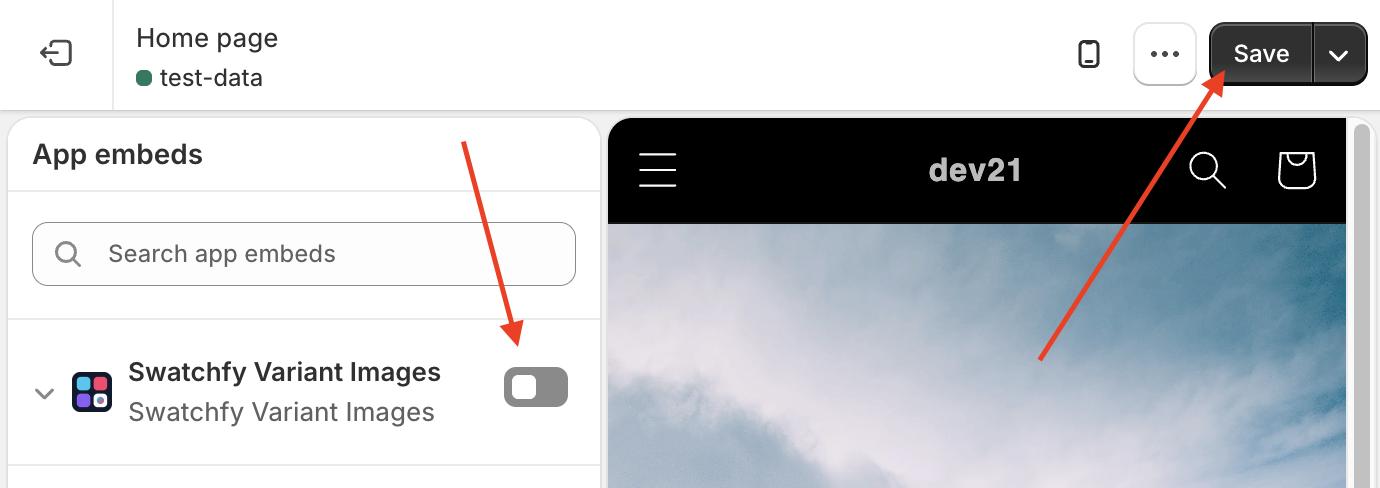
You are now looking at your store with no Swatchfy at all. Your live theme is untouched throughout — when you are done, just delete the duplicate.
The URL of the page where it happens
Your theme name and version (Online Store → Themes)
What you expected to see, and what you saw instead
The result of whichever test above you ran
A screenshot or a short screen recording, if it is a visual problem
With those five we can usually reproduce the problem without needing access to your store.
Swatchfy also has a built-in diagnostic report and verbose logging, aimed at developers rather than merchants. If someone technical is helping you, point them at Swatch events and the JavaScript API in these docs — Swatchfy.health() gives them a full theme report from the browser in one command.