Swatchfy is four features that share one app embed. They work independently — most stores start with one and add the others later — so it is worth knowing which one solves your problem before you start clicking.
Everything below needs the same first step: Online Store → Themes → Customize → App embeds → Swatchfy Variant Images, switched on and saved. That embed is the app's on/off switch — there is no second switch inside the app to find.
Shows only the photos that belong to the variant the shopper selected, and hides the rest of the gallery.
Use it when one product has several photos per colour — a front, a back, a fabric close-up — and your gallery currently shows all of them at once whatever the shopper picks.
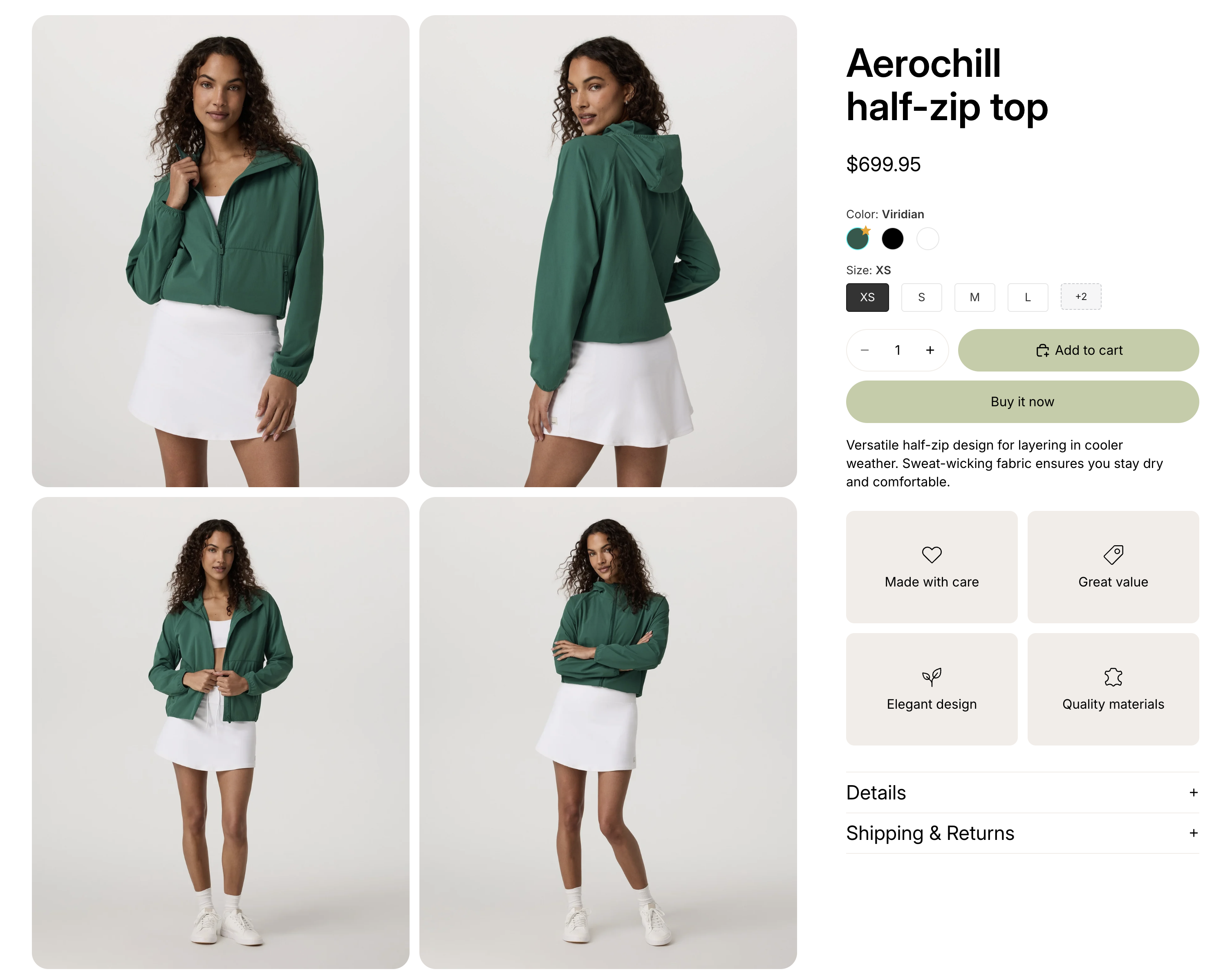
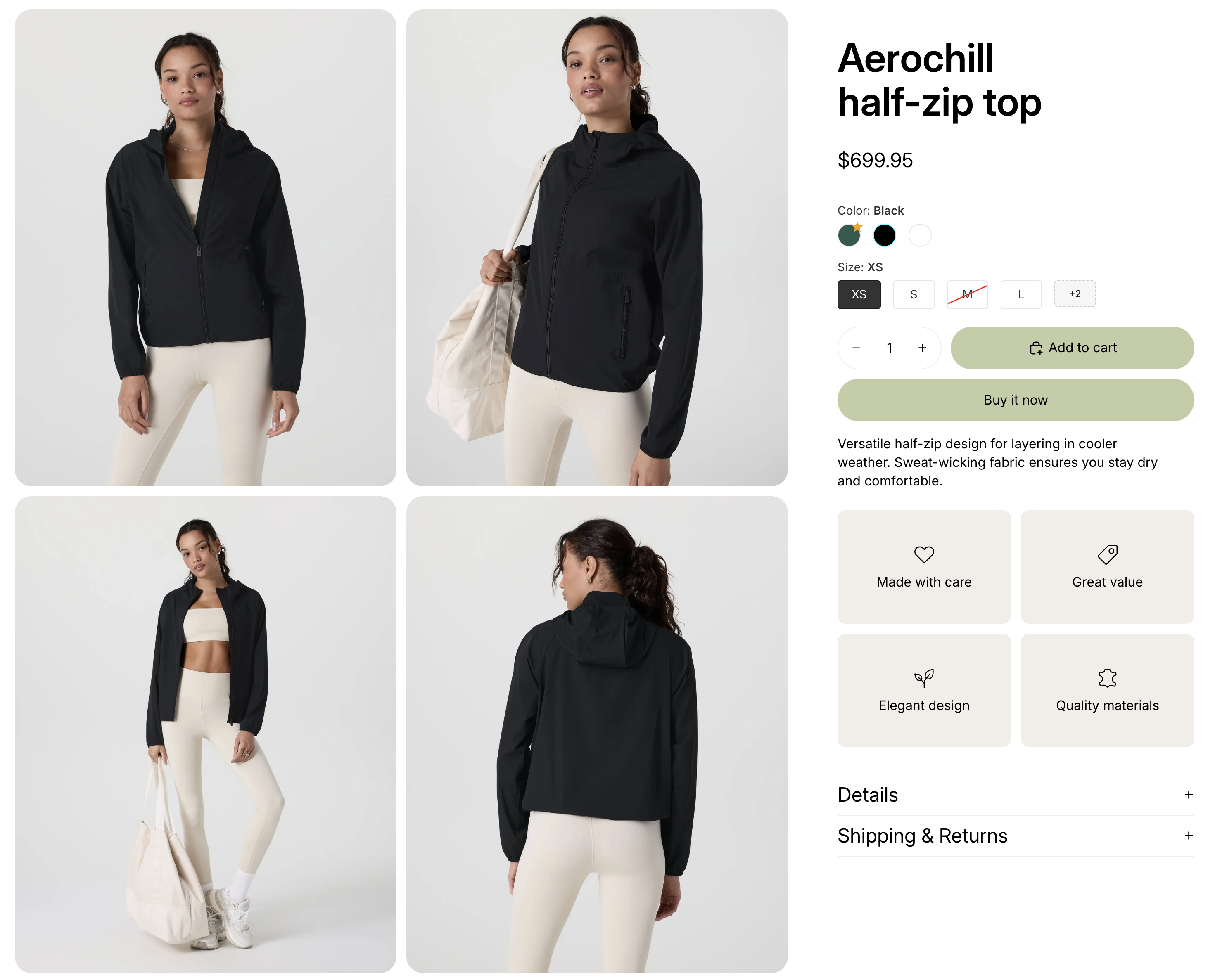
There are two ways to tell it which photo belongs to which value: let it read the order your photos already sit in inside Shopify, or assign them by hand in the app. Most stores turn on the automatic one and assign by hand only where it does not fit.
Set up in Settings (automatic) or Product setup → Assign images (by hand). → Show different images for each variant
Turns your variant options into colour swatches or image swatches, in place of your theme's dropdown or button picker.
Use it when shoppers cannot tell your colours apart from a text label, or when your theme's picker does not match your design.
You pick the look per option and per surface, so Colour can be image swatches on the product page and small dots on collection cards while Size stays a plain button — or is hidden from cards entirely.
Set up on the Variant swatches page. → Turn your variant options into swatches
Shows separate products as a single option row, so shoppers can move between them the way they move between variants.
Use it when the same item is listed as several products rather than as variants of one — because each colour has its own SEO page, its own reviews, or came from different suppliers. Shopify has no built-in way to link them; this is that link.
Set up on the Product groups page. → Show separate products as variants
Click here to see the demo.
Shape, size, spacing, borders and out-of-stock treatment for the swatches, set separately for the product page and for product cards.
Set up on the Appearance page. → Change how your swatches look
Variant images and swatches are genuinely independent: swatches can render without a single image assigned, and images can filter while your theme keeps its own picker. Turning one on does not turn the other on.