

Swatches replace your theme's dropdown or button picker with colour dots or small images, on the product page and optionally on product cards.
Before you start
The app embed must be on: Online Store → Themes → Customize → App embeds → Swatchfy Variant Images, then Save.
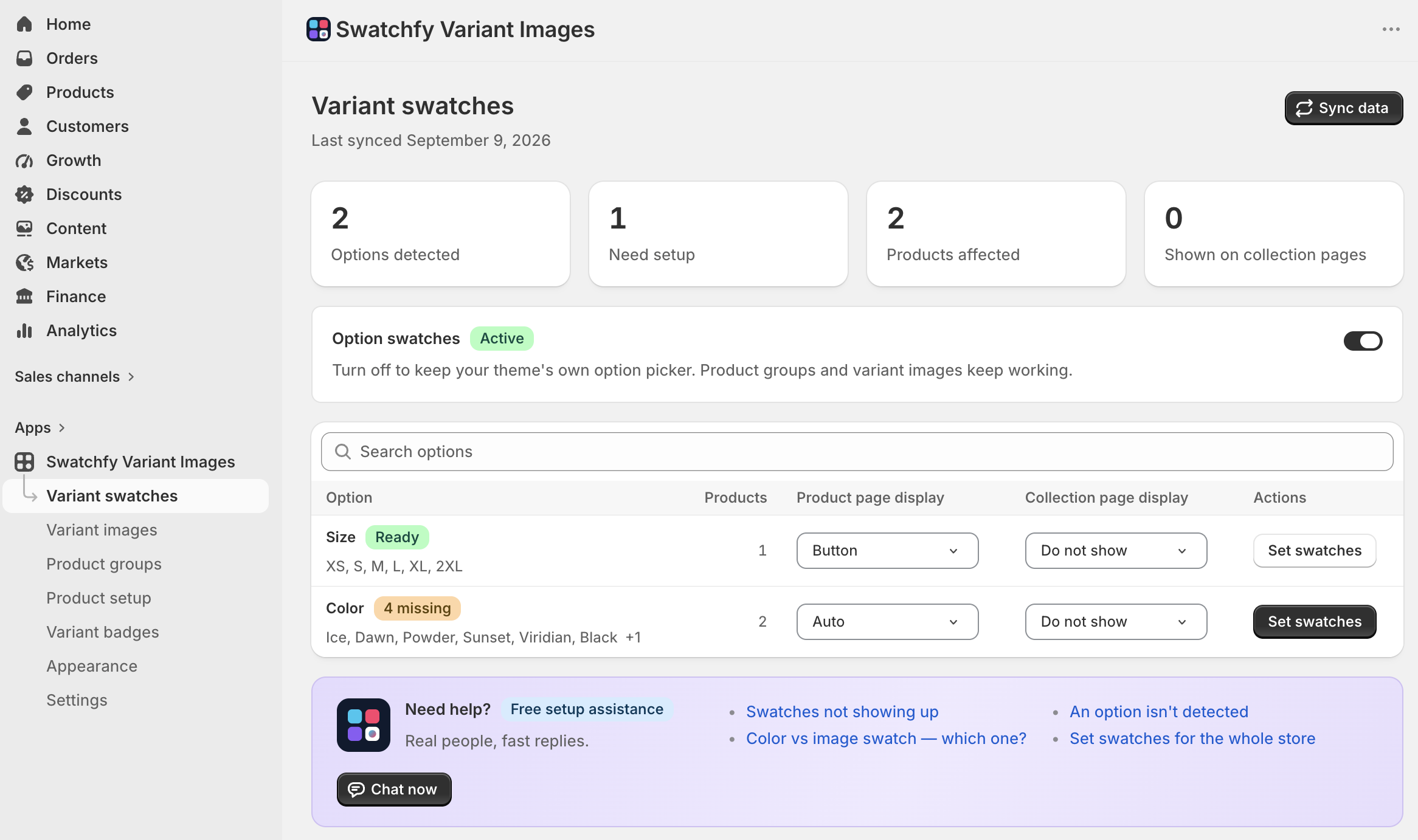
Switch it on
Open Swatchfy → Variant swatches.
Turn on Swatch status.
Check Option names. This comma-separated list is what Swatchfy treats as visual options — Color, Colour, Couleur and so on. Add your own if your store names the option something else, and remove any you do not want rendered as swatches.
At this point swatches appear on the products you have configured. To have them appear everywhere, turn on Show on non-configured products.
Give each value a colour or an image
On the Variant swatches page, choose Set swatches and pick a product.
For each option value, set a colour or choose an image.
Save.
Setting either one is enough. If you set both, the image is used.
For a two-tone value, set a secondary colour as well and the swatch splits between the two.
Do it once for the whole store instead
Setting a colour product by product does not scale — Navy is the same navy on all two hundred of them.
On the Variant swatches page, the Variant options section lists every option name in your catalogue. Click one — Color, say — to open it and set a colour or image for each of its values. Those are store-wide defaults: a product-specific swatch overrides them, so set the general rule here and correct only the exceptions per product.
The first time you open it, Swatchfy asks to read your product options. It stores the list of option names and values and nothing else — a few KB whatever the size of your catalogue.
Suggest colours
On an option's page, Suggest colours fills in hex codes by reading the value names: Navy, Forest green and Charcoal are recognised, and anything it cannot read is left blank for you.
It tells you how many it filled and how many still need one. Review before saving — it is a head start, not a decision.
After you add products
Click Sync data on the option page so newly added option values appear. If you rename an option in Shopify, the old one shows as Option not found until you sync.
What happens to your theme's picker
It is hidden, not removed. Swatchfy sets values on your theme's own controls and fires the same events the shopper's clicks would, so your theme keeps handling price, availability and add-to-cart exactly as before.