Card swatches let shoppers see and switch colours straight from the collection grid.
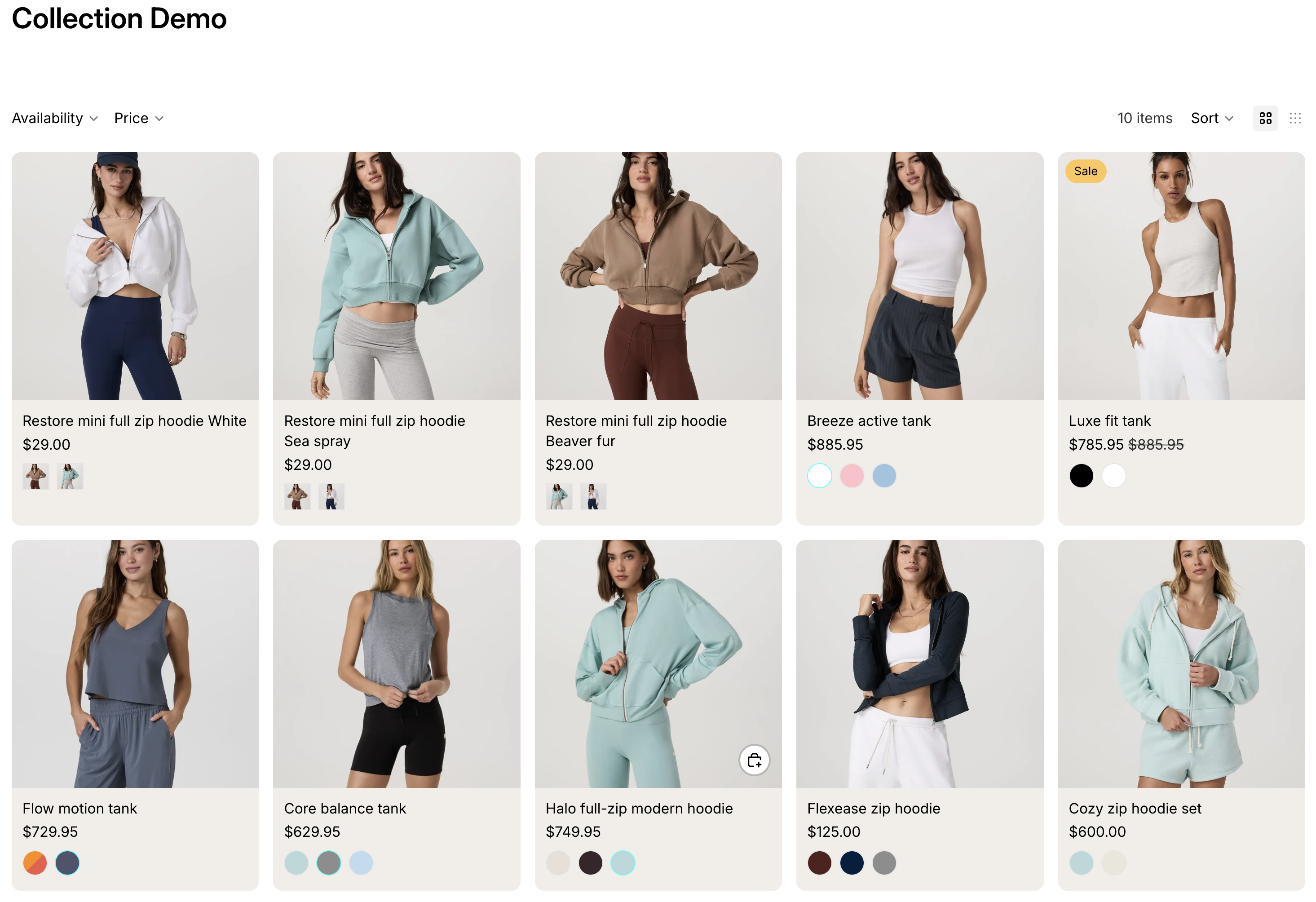
There is no single card toggle. You choose it per option, which is what lets you show Colour on cards and keep Size off them.
Open Swatchfy → Variant swatches.
Find the option's row in the Swatches by option table.
Set its Collection page display to anything other than Do not show.
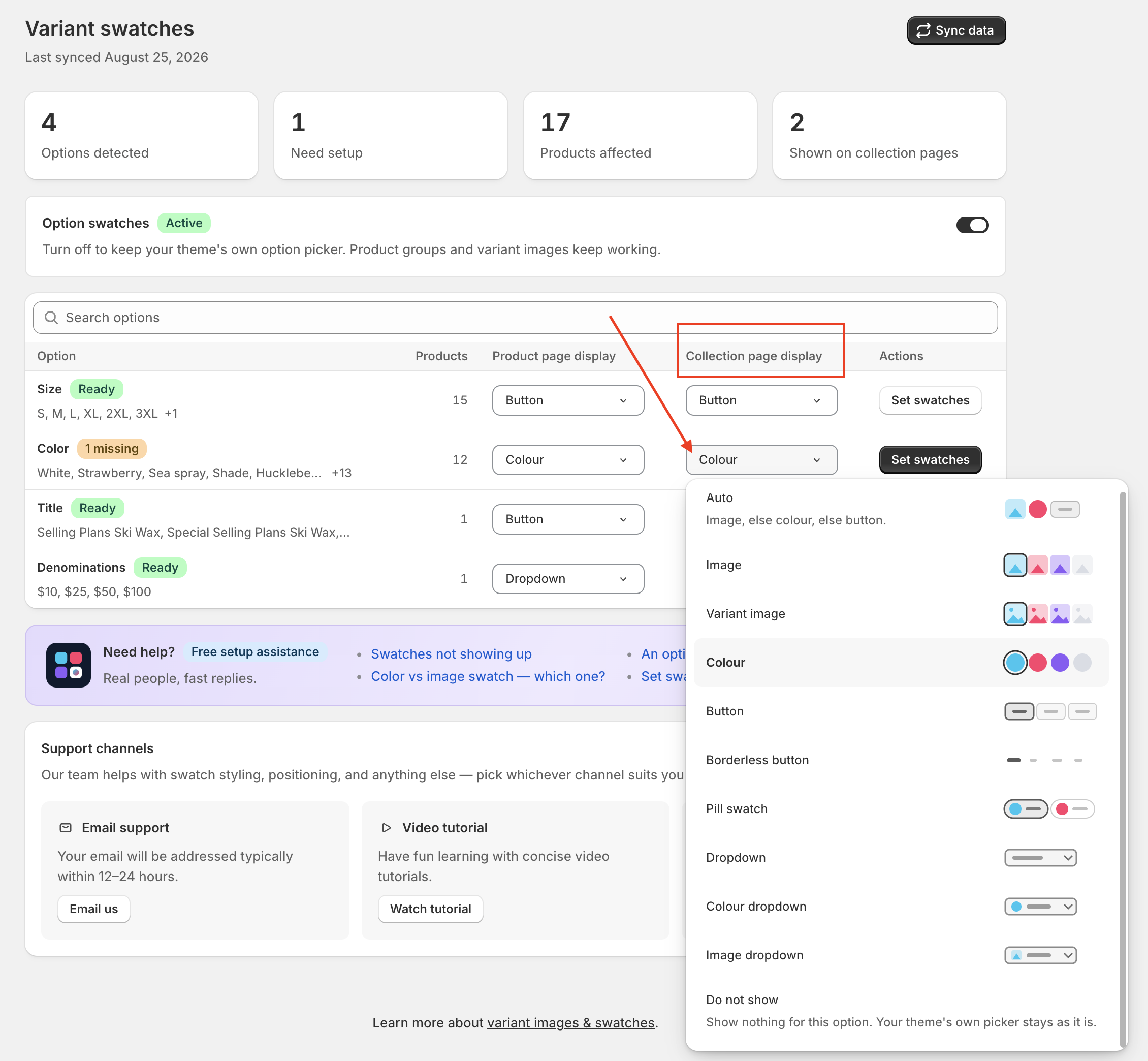
Swatches then appear wherever your theme uses its standard card layout — collections, search results, homepage sections and recommendation rows.
You can see the demo here.
Small looks read best in a grid: Colour swatch, Image swatch or Variant image swatch. Leave the with price looks for the product page — a card swatch is too small to read a price on.
These live in Swatchfy → Settings → Product card swatches, and apply to every card.
Setting | What it does |
Hide non-visual options on cards | Keeps text-only options off cards even if they have a display mode set. |
Show only the first variant option | Only the product's first option gets swatches — tidy when a product has both Style and Colour. |
Click to switch variant (Desktop) | On: clicking a swatch switches the card. Off: it behaves as a link to the product. |
Tap to switch variant (Mobile) | The same choice, set separately — tapping and clicking are not the same gesture. |
Change product card image on hover | Hovering a swatch previews that variant's photo. |
Show selected swatch image on load | Each card opens on its highlighted swatch's image rather than the theme's default. |
Hover image resolution | Pixel width fetched for the hover preview, 300–2000. Raise it for large cards, lower it to save bandwidth. |
The card's image and its link switch to the selected variant, and quick-add follows the selection.
The price on the card does not change. That is deliberate, not an oversight: your theme renders prices with its own markup, currency and sale rules, and an app rewriting that text gets it wrong for some stores in ways nobody notices until a customer does. The shopper sees the correct price for their selection on the product page.
Cards are found through your theme's own card layout, and homepage sections are where themes vary most — especially sections built with a page builder. If the settings above are right and swatches still do not appear on a page, send us that page's URL and your theme name.