Swatchfy deals with two different kinds of language, and it helps to keep them apart:
The language of the app itself, the one you read in the Shopify admin.
The languages of your storefront, the ones your shoppers read.
This article covers both. If your store sells in one language only, you can skip it: nothing here needs setting up.
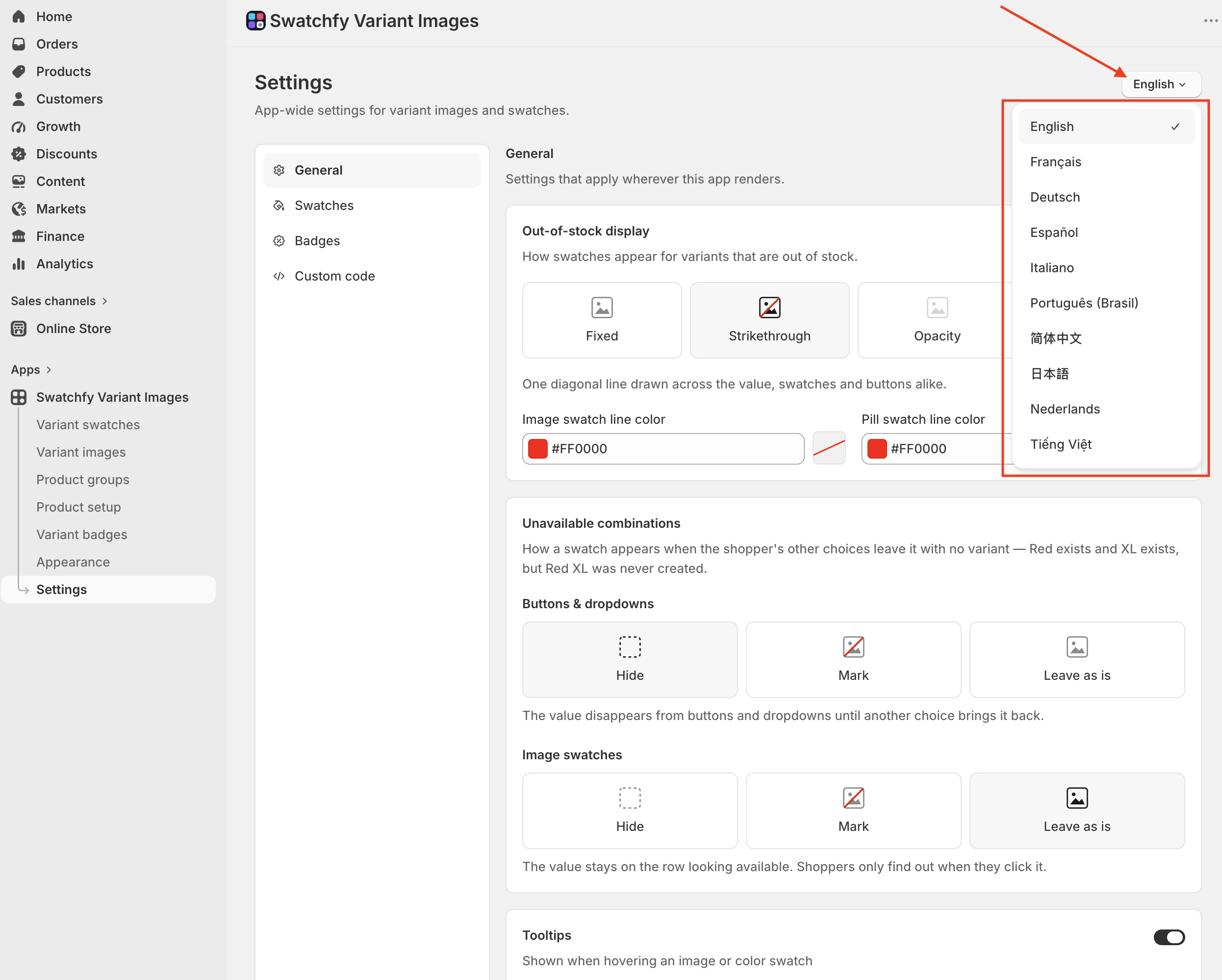
The Swatchfy admin is available in ten languages: English, Français, Deutsch, Español, Italiano, Português (Brasil), 简体中文, 日本語, Nederlands and Tiếng Việt.
By default the app follows the language of your Shopify admin. To pick a different one, use the language button at the top right of any Swatchfy page. Your choice is remembered in this browser, and it changes nothing on your storefront.
Swatchfy looks everything up by two words: the option name (Color) and the option value (Red). Shopify translates both of them, so on your French storefront the page says Couleur and Rouge while your swatches were set up against Color and Red.
Swatchfy bridges that gap for you. When you click Sync data on the Variant swatches page, it reads your option names and values together with their translations in every language your store publishes. On a translated page it then translates each word back before looking it up, so:
colour and image swatches show for the translated values,
the gallery filters to the right photos,
badges appear on the right values,
product group rows render.
You do not configure anything per language. Set up swatches once, in your store's primary language, and sync.
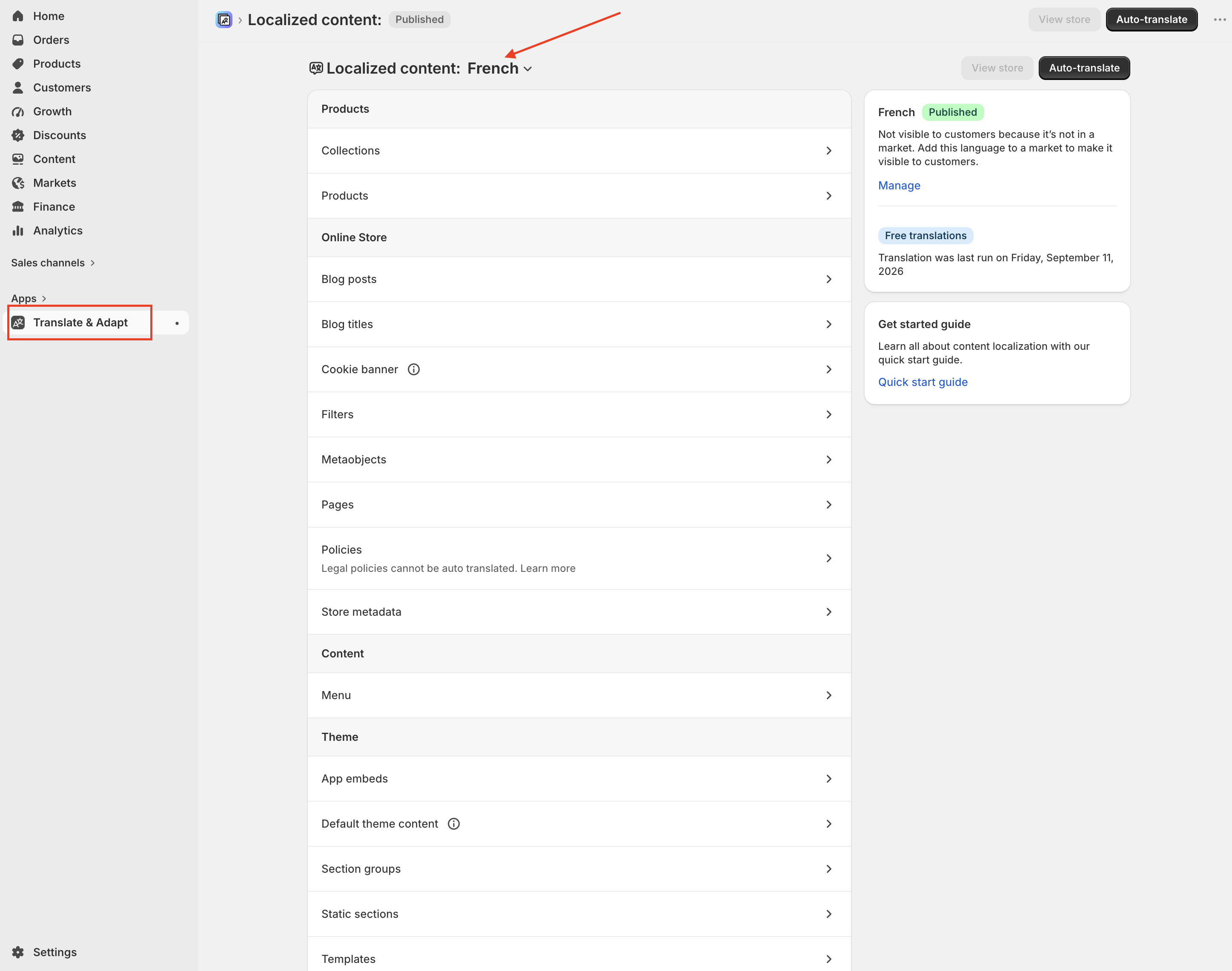
From Shopify, not from Swatchfy. Translate your option names and values with Translate & Adapt or through Markets, the same way you translate product titles. Swatchfy only reads them.
A value you have not translated is fine: the theme then prints the primary-language word, which is exactly the word your swatch is set up against.
Click Sync data on the Variant swatches page after you:
publish a new storefront language,
translate or re-translate option names or values,
add option values, in any language.
Swatchfy does not watch your translations in the background. Until you sync, a newly translated value keeps its old spelling in Swatchfy and the swatch for it will not show on that language. The table shows Last synced so you can tell how old the data is.
Open Variant swatches › Set swatches on any option. Under the option name you will see a line like:
Storefront languages: English (primary) · Français 5/5 · Tiếng Việt 3/5
Each number is how many of the option's values have a translation in that language. Below each value, the page also prints its spelling in every language, so you can see the exact word the swatch is matched by there.
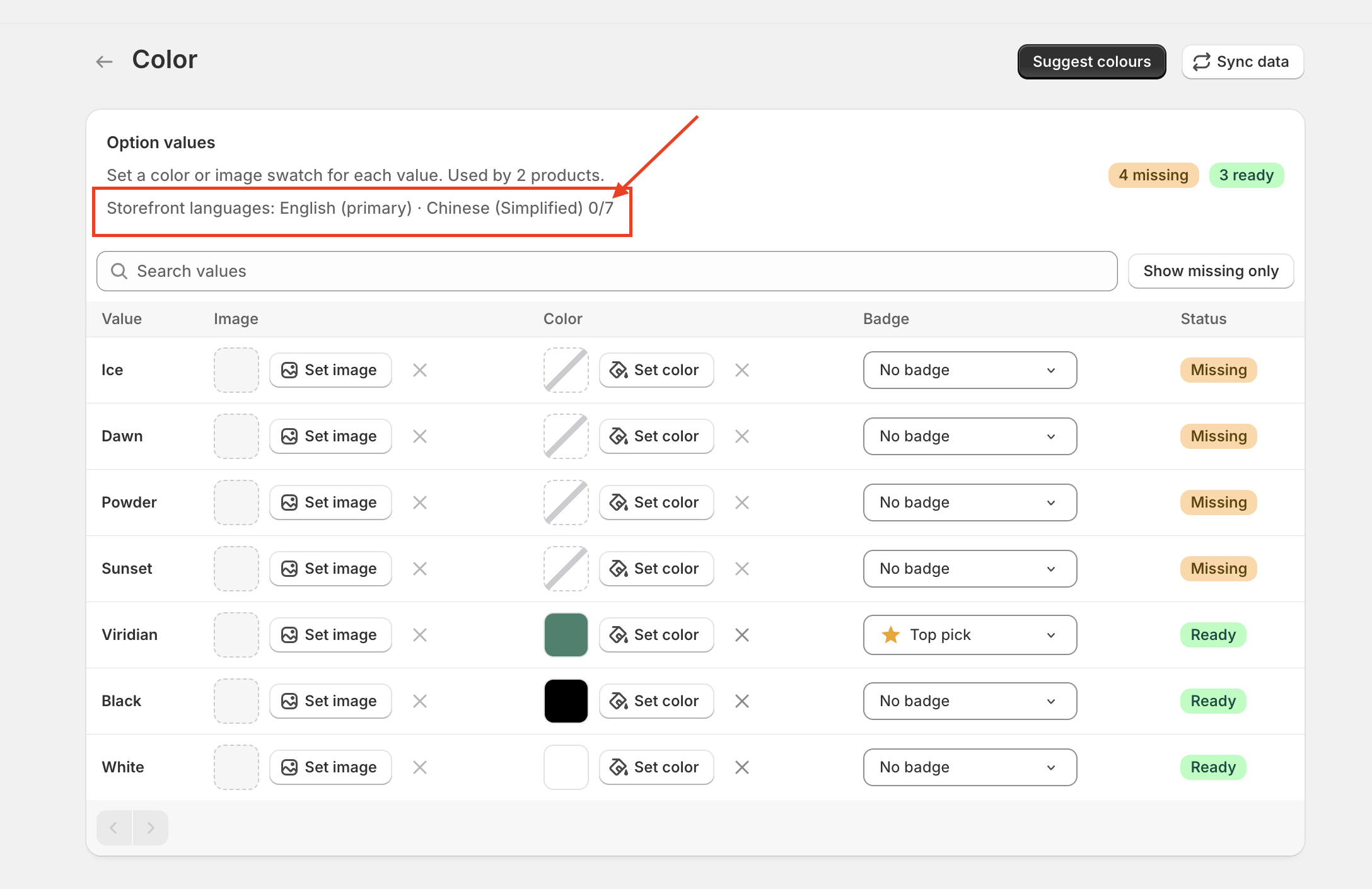
If that line is red and reads Translations not loaded, your store publishes more than one language but Swatchfy has not read the translations yet. Click Sync data and it goes away.
Some words that shoppers read do not exist in your Shopify catalogue. They live only in Swatchfy, so Shopify's translation tools never see them. For those, the app gives you a language picker right beside the field. The picker only appears when your store publishes more than one language.
What | Where |
A badge's text | Variant badges › edit a badge, the Language for this text picker beside the text field |
The text of the automatic Sold out and On sale badges | Settings › Badges, the same picker |
A product group's Option name | Product groups › edit a group, the Field language picker |
Each group member's Shown as value | Same page, beside each member |
How the pickers work:
The primary language is the default text. Type it first.
Switch the picker to another language and type the translation. The field shows the default text greyed out as a hint, so you can see what that language will say without switching back.
Leave a translation empty to use the default text in that language.
On the storefront, Swatchfy picks the exact locale first (pt-BR), then the language on its own (pt), then the default.
Badge text is limited to 12 characters in every language.
The primary-language text is also the key Swatchfy matches on. For a product group, the Option name has to match the option on the member products, and a member's Shown as value is what the swatch colour is looked up by. Keep those in the primary language and put the translations in the picker, never the other way round.
Everything on the Appearance page, the display type chosen per option, the card behaviour under Settings, and image assignments all apply to every language at once. There is nothing to repeat per storefront language.
Swatchfy needs permission to read your store's languages and translations. Stores that installed the app before September 2026 were asked to approve these the next time they opened it. If you never see a language picker or the Storefront languages line even though your store publishes several languages, open the Swatchfy app from your Shopify admin and accept the permission screen when it appears, then click Sync data.
Symptom | Fix |
Swatches show in the primary language but not on | Variant swatches › Sync data |
A value you translated yesterday still has no swatch in that language | Sync data again, then reload the storefront. Storefront changes can take up to a minute to appear. |
A badge or a product group reads in the primary language on a translated storefront | Fill in that language in the field's language picker; those words are not in Shopify's translations |
The option page says Translations not loaded | Sync data |