Swatchfy replaces your theme's variant picker with its own swatch rows. Most size chart apps carry on working exactly as before. A few place their button inside the picker Swatchfy replaces — when that happens the button is still there, but shoppers cannot see it.
This article covers both: putting the button where you want it, and getting it back if it vanished.
Open a product page on your storefront that has a size chart.
Button is visible and in a sensible place — nothing is wrong. Read on only if you want it beside the size swatches instead.
Button has disappeared since you turned Swatchfy on — your size chart app placed it inside the variant picker. Follow Option B below.
Test on the storefront, not in the theme editor. The theme editor renders things slightly differently.
Swatchfy leaves an empty space at the end of each option's label line — the line that reads Size: M. Anything you put there sits neatly at the right-hand end of that line, and you do not have to write any styling to make it line up.
There are two ways to fill it. Try Option A first: it takes ten seconds and needs no code.
Some size chart apps have a setting called CSS selector, Custom selector or Custom placement. If yours does:
Open your size chart app's settings and find that field.
Paste this in:
.kiteapps-swatches[data-kiteapps-option-index="1"] .kiteapps-swatches__optslotIf there is a position dropdown, choose Insert inside.
Save, then open a product page.
The 1 is which option row. Options are counted from 0, so 0 is your first option and 1 is your second. On a product with Color then Size, 1 is the Size row. Change the number to match your own products.
If the button disappears completely after this, your size chart app looked for the row before Swatchfy had drawn it. That is not something you can fix in its settings — use Option B instead.
This works with every app in the table below, and does not depend on your size chart app having any placement setting.
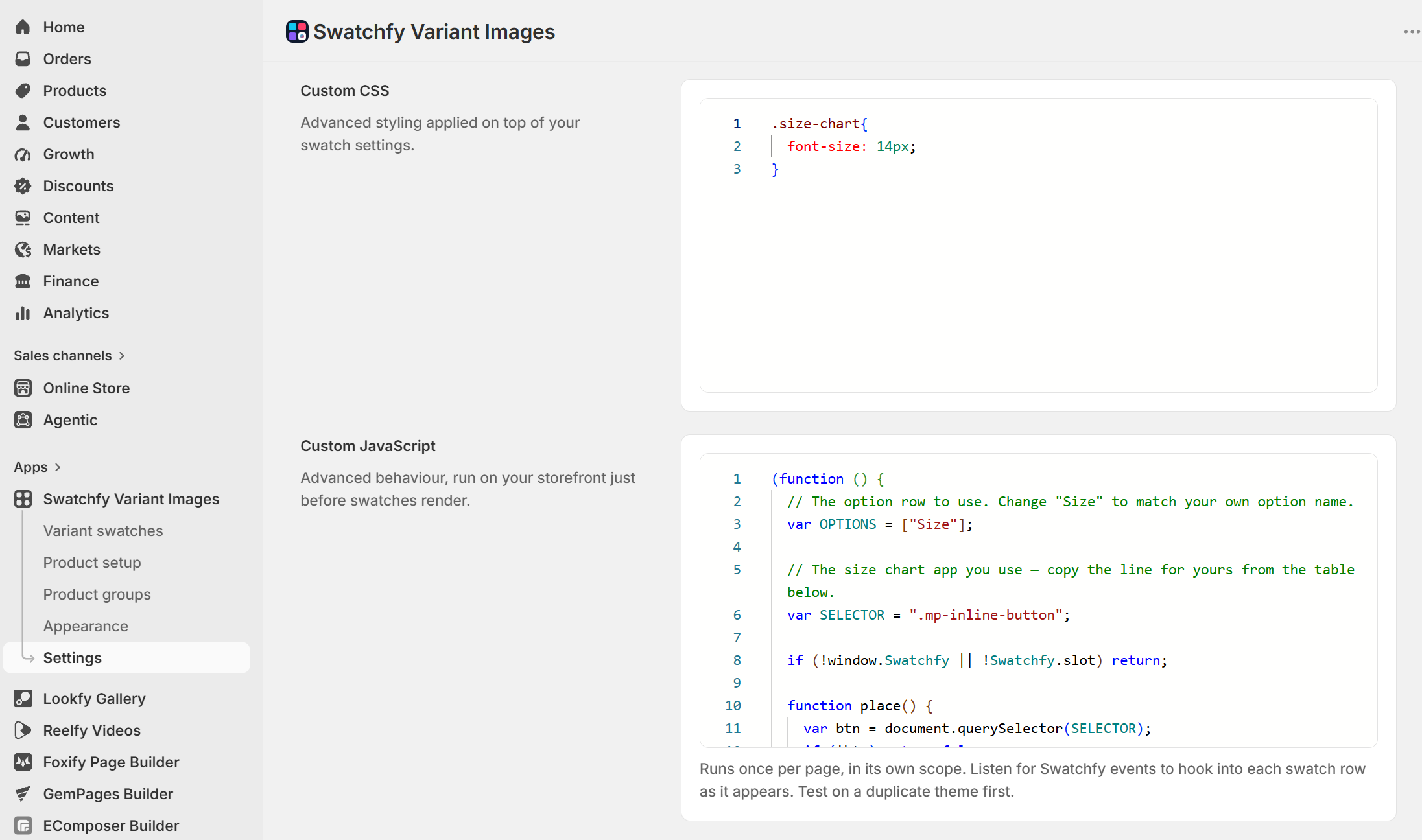
In Swatchfy, go to Settings › General.
Scroll to Custom JavaScript.
Paste the snippet below, changing one line — see the table.
Click Save, then open a product page.
(function () {
  // The option row to use. Change "Size" to match your own option name.
  var OPTIONS = ["Size"];
  // The size chart app you use — copy the line for yours from the table below.
  var SELECTOR = ".mp-inline-button";
  if (!window.Swatchfy || !Swatchfy.slot) return;
  function place() {
    var btn = document.querySelector(SELECTOR);
    if (!btn) return false;
    var wanted = [].concat(OPTIONS);
    for (var i = 0; i < wanted.length; i++) {
      var slot = Swatchfy.slot(wanted[i]);
      if (slot) {
        if (btn.parentNode !== slot) slot.appendChild(btn);
        return true;
      }
    }
    return false;
  }
  var polling = false;
  Swatchfy.on("swatchfyOptionRendered", function () {
    if (place() || polling) return;
    polling = true;
    var tries = 0;
    var timer = setInterval(function () {
      if (place() || ++tries > 40) { clearInterval(timer); polling = false; }
    }, 250);
  }, true);
})();
Your size chart app
Use this SELECTOR
Kiwi Size Chart & Recommender |
|
MP Size Chart & Size Guide (formerly Avada) |
|
Smart Size Chart & Fit Finder |
|
Clean Size Charts |
|
Pify Size Charts |
|
Using a size chart app that is not listed? with the app's name and we will find the right line for you.
OPTIONS is a list, tried in order, and the first row that exists on the product wins.
One option name across your catalogue — leave it as ["Size"].
Some products use a different name — list them all: ["Size", "Length", "Width"].
You sell in more than one language — use the row's position instead of its name: [1]. Positions count from 0, so [1] is the second option.
Option names are translated on a translated storefront: a French market shows Taille, not Size. A snippet written with
["Size"]will quietly do nothing there.[1]keeps working in every language, which is why it is the safer choice for international stores.
You can paste more than one snippet — just paste each one whole, exactly as it is written above. Each keeps its own settings because everything sits inside its own (function () { … })() wrapper.
Nothing appears at all. Check that your size chart app has a chart assigned to that specific product. Most apps show no button on products without one, and that is their behaviour, not Swatchfy's.
The button is on the wrong row. Change the number or name in OPTIONS.
The button vanished when I switched Swatchfy off. That is expected if you used Option A: the space it sits in only exists while Swatchfy is running. Turn the app embed back on and it returns. Option B fails more gently — it simply does nothing.
Everything looks right in the theme editor but not on the storefront. Always confirm on the live storefront. The theme editor is not a reliable preview for app placement.
Still stuck? and tell us which size chart app you use and the URL of a product page where the problem shows. That is usually enough for us to send you the exact line to paste.