

Swatchfy has two separate features, and this is the second one. Swatches render the picker; Variant images filters the gallery. Having swatches on your page does not automatically filter images.
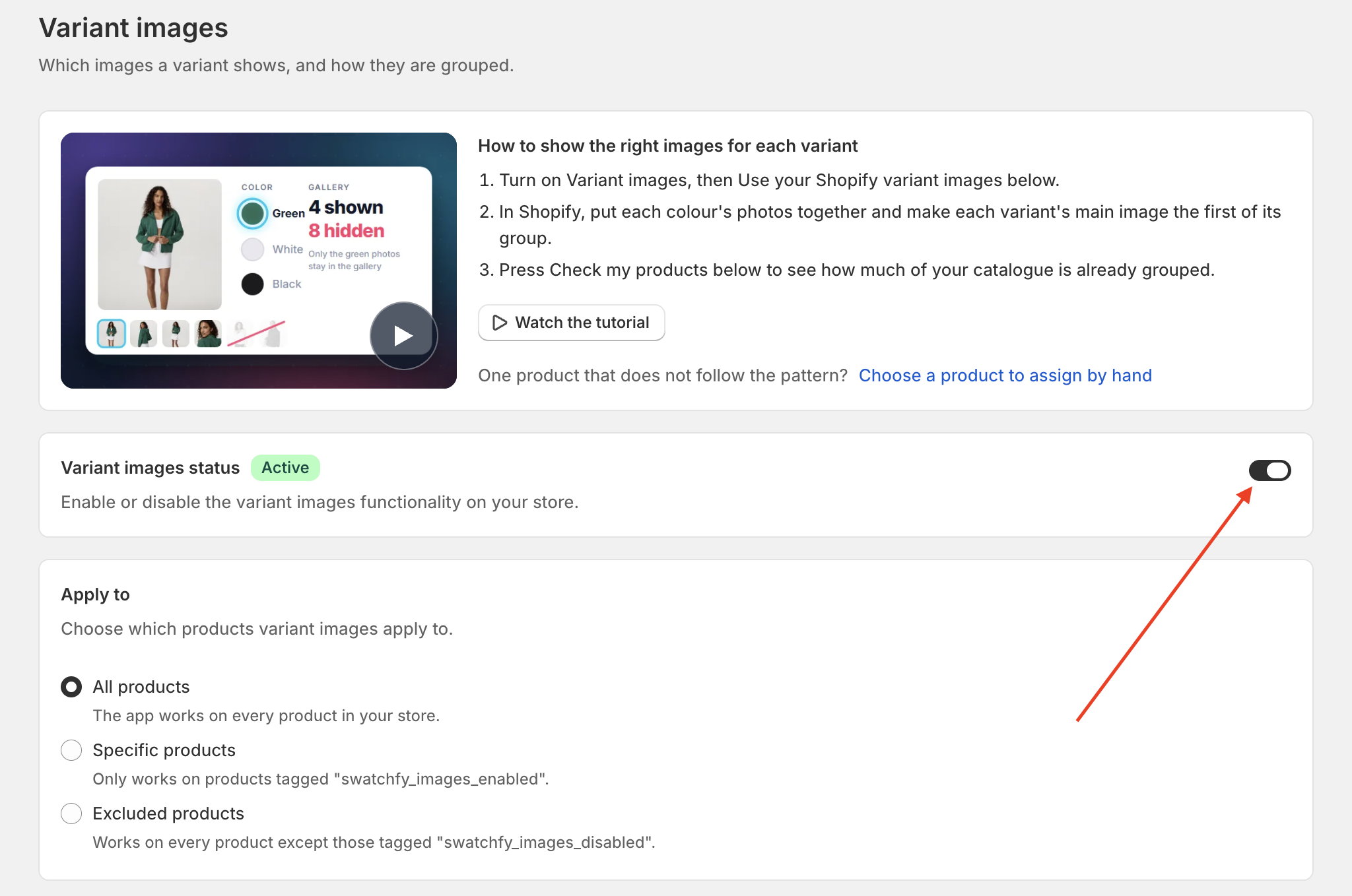
1. Variant images is switched on
Check Variant images status in Swatchfy → Settings, or the Variant images card on your dashboard.
2. The product has images assigned
Open Product setup → Assign images for the product and put each photo under the option value it belongs to. Nothing is filtered until something is assigned.
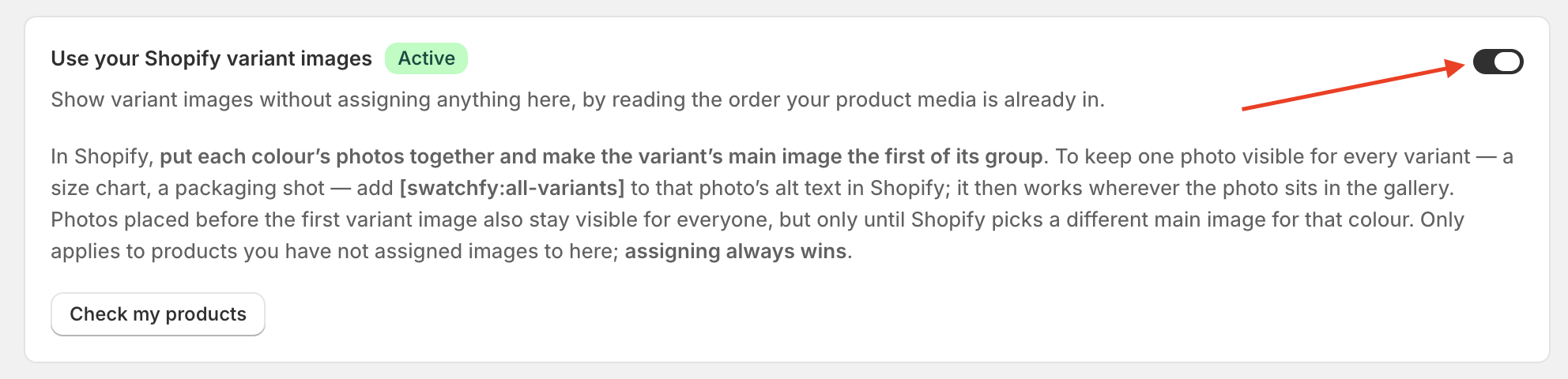
If you would rather not assign by hand, turn on Settings → Use your Shopify variant images. Swatchfy then derives the groups from your Shopify media order — put each colour's photos together and make the variant's main image the first of its group. Assigning by hand always wins over this.
3. Your theme's gallery is recognised
Swatchfy has to find your theme's gallery before it can filter it. Most themes build their gallery the standard Shopify way and work with no extra setup, but some — especially heavily customised ones, and galleries built with a page builder — lay their photos out differently.
If the first two steps are done and images still do not filter, this is usually why. Send us your theme name and a product URL. Adding support for a gallery is work on our side; you will not be asked to edit theme code.
See also: How do I check whether a problem is caused by Swatchfy?