

Swatchfy does not replace your theme's variant picker — it hides it and drives it. When a shopper clicks a swatch, the app sets the value on your theme's own control and fires the input and change events, exactly as if the shopper had used the original picker. Your theme then updates the form and the price as usual.
So Swatchfy needs that picker to exist. There are two situations where it does not.
1. Your theme's variant picker has been switched off
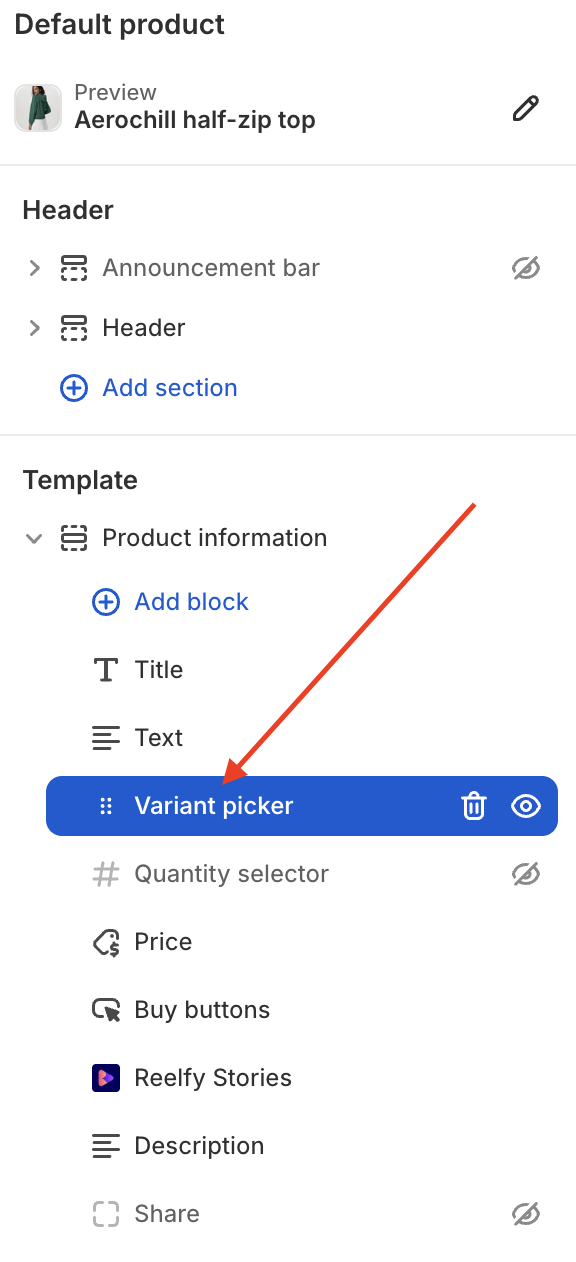
This is the common one, and it is usually deliberate: a merchant adds the Swatchfy swatch block to the product template and then removes the theme's own Variant picker block, assuming one replaces the other.
It does not. Leave the theme's variant picker block on — Swatchfy hides it for you and shows the swatches in its place. If you switch it off:
On most stores, no swatches appear at all. Swatchfy has nothing to attach to, so it renders nothing rather than showing controls that cannot work.
If you added the Swatchfy swatch block, its rows are drawn by your theme before the app runs, so they stay on screen and stop responding — and the cart keeps whatever variant the page loaded with. That is this article's symptom.
Fix: in the theme editor, turn the Variant picker block back on in your product template. Swatchfy shows a warning in its own block when this is the problem, so if you are in the editor you will see it there too. Do not worry about two pickers showing — Swatchfy hides the theme's one as soon as it loads.
2. Your theme has no per-option control
A few themes ship a single combined list of variant IDs instead of a Colour control and a Size control. There is no per-option control to set, so the form keeps its default variant and that is what reaches the cart. This one needs an adapter from us.
Confirm which one you have
Open the product page with ?stop_swatchfy=true on the end of the URL. Swatchfy's scripts do not run on that page load, and your theme's own picker comes back after about two seconds. Only that page view is affected; your live store is untouched.
Native picker adds the correct variant, Swatchfy does not → the theme needs an adapter from us.
Both add the wrong variant → the problem is in the theme or another app, not Swatchfy.
If you added the Swatchfy swatch block to your product template, this test will not clear the swatches off the page — see How do I check whether a problem is caused by Swatchfy? for the theme-preview test instead.
What to send us
Your theme name and version, the product URL, and which of the two results above you got. Themes that need a custom control type are handled case by case, and adding one does not require you to edit any theme code.